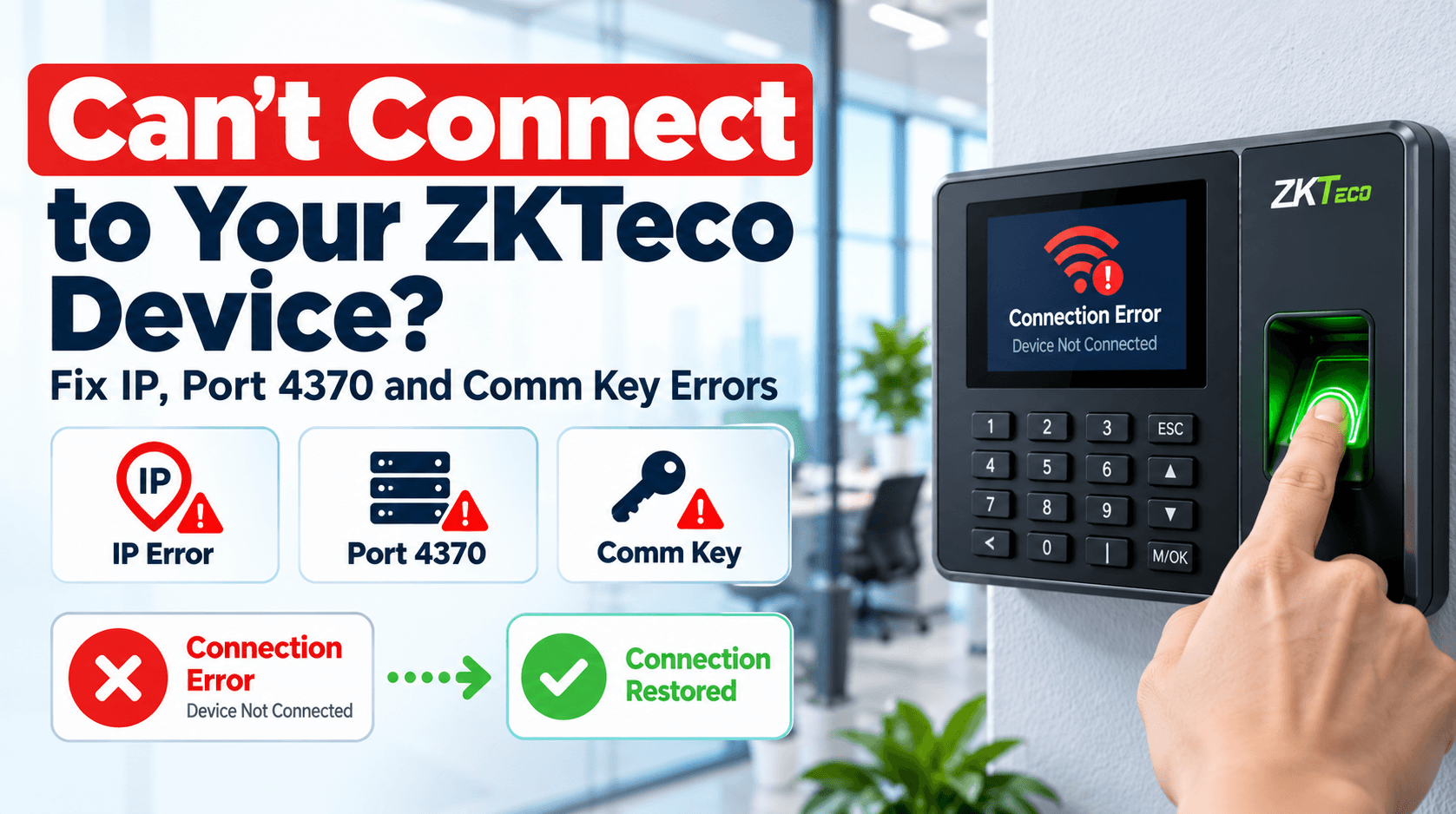
"Unable to connect." "Connection failed." "Timeout." These are the messages that send people searching for ZKTeco port 4370. The terminal is on the wall, the lights are on, the cable is plugged in, and the software cannot find it. The good news is that ZKTeco's connection works in a small number of ways, and each one breaks in a predictable place.
This guide takes you from the terminal's cable to the software's settings, in the order that finds the fault fastest. It uses ZKTeco's manuals and its published FAQ. The examples are from the F18 and similar terminals. Other models differ slightly in menu names, so use the manual for yours.
First: which kind of connection do you have?
This one question decides which half of this guide you need.
| Pull (PC software calls the terminal) | Push (ADMS: the terminal calls the server) | |
|---|---|---|
| Typical software | ZKTime, ZKAccess and other desktop tools, or a program using the ZKTeco SDK | ZKBio Time (BioTime), including BioTime Cloud |
| What the software needs | The terminal's IP address, port 4370 and the Comm Key | Nothing. It waits to be called |
| What the terminal needs | A reachable IP address and an open port | The server address and port under Cloud Server Setting |
| Where it usually breaks | Wrong IP, different subnet, wrong Comm Key, firewall | Wrong server address or port, server firewall, device type |
If you use BioTime, read this guide for the network checks in Steps 1 to 3, then go to our guide to BioTime device offline and ADMS errors. The rest of this one is mainly about pull connections.
Symptoms: what you are seeing
| What you see | What it usually means | Go to |
|---|---|---|
| The terminal's network icon is red, crossed or missing | A cable, switch or network setting problem | Step 1 |
| You cannot ping the terminal | A wrong IP, subnet or gateway, an address clash or a blocked route | Step 2 and Step 3 |
| You can ping it, but the software says unable to connect or timeout | The port, the Comm Key, a firewall or the software | Step 4 and Step 5 |
| It worked, then stopped after a power cut or an IP change | The address changed, or a DHCP lease expired | Step 2 |
| It connects to old software but not to new software | The software does not support the model or the firmware | Step 6 |
| BioTime shows it offline | A push problem, not a pull one | The BioTime offline guide |
| Nothing works, and a ping from a direct cable fails too | A hardware fault | Step 3 |
Step 1: Check the cable and the network icon
Start with the physical layer. ZKTeco's FAQ begins its network checks here, and so should you.
- Look at the network icon on the terminal's screen, in the top right. ZKTeco's FAQ says that after the cable is connected the computer icon turns green when the connection is normal. A red icon or one showing an "X" means the terminal has no link.
- If the icon is red or crossed, check the cable. Test it by plugging it into another device. ZKTeco's FAQ says that if the other device does not connect either, replace the cable with a known good one and try again.
- Check the switch port and the cable run. A bad patch cord, a cable pushed past its length limit, an unpowered switch or a PoE port that has failed all show as a red icon.
- If the icon is missing, go to Menu, Comm., Ethernet and check the Display in Status Bar setting. ZKTeco's manual says it decides whether the network icon is shown at all.
Step 2: Check the IP address, subnet and gateway
Press M/OK on the main screen, select Comm., then Ethernet. These are the settings and their factory values, from ZKTeco's F18 manual:
| Setting | Factory value | What to check |
|---|---|---|
| IP Address | 192.168.1.201 | A free address on your network. If you have not changed it, it will not match most office networks |
| Subnet Mask | 255.255.255.0 | The same as your PC and router |
| Gateway | 0.0.0.0 | Needed only if the software is on another network. Set it to your router |
| DNS | 0.0.0.0 | Needed if you use a domain name for the server |
| TCP COMM. Port | 4370 | Must match what the software uses |
| DHCP | Off or on | If on, the address can change. See below |
The most common cause is simple, and ZKTeco's manual states the rule: the terminal and the PC must be on the same network segment. A terminal at 192.168.1.201 cannot be reached by a PC at 192.168.0.20 or 10.0.0.5 without a route between them.
- Same subnet. If your PC is 192.168.0.20 with mask 255.255.255.0, give the terminal an address like 192.168.0.201, with the same mask.
- No clashes. Two devices on one address cause connections that work, then fail, then work. Before you assign an address, ping it and check nothing replies.
- Use a fixed address, or a DHCP reservation. If DHCP is on and the router gives the terminal a new address, the software is still pointed at the old one. This explains terminals that "stopped working" after a power cut or a router reboot.
- Several networks on one terminal. ZKTeco's FAQ describes a Wi-Fi terminal that could not be pinged because its Ethernet and Wi-Fi were in the same subnet. Putting them on different subnets fixed it. If your terminal has both, make sure they do not overlap.
- Another site or VLAN. If the software is at head office and the terminal is at a branch, a route and a firewall rule between the two networks are needed. See multi-branch attendance for the options, which include a VPN or a cloud service.
Step 3: Ping it, then test it on a direct cable
From a PC on the same network, open a command prompt and ping the terminal:
ping 192.168.1.201
- Replies: the network path works. Go to Step 4.
- "Request timed out" or "Destination host unreachable": the PC cannot reach it. Recheck Steps 1 and 2.
If it still fails, use the test ZKTeco's own FAQ gives to separate a network problem from a hardware problem:
- Unplug the terminal from the network. Connect it directly to a PC with a network cable.
- Set the PC's network adapter to a fixed address in the same segment, for example 192.168.1.x (such as 192.168.1.50), with mask 255.255.255.0.
- Ping the terminal's default address, 192.168.1.201. ZKTeco's FAQ names 192.168.1.22 as another default on some models.
- If the ping works, the terminal is healthy and the fault is in your network: the switch, the VLAN, the address plan or a firewall.
- If the ping fails, and the terminal's address is unchanged, ZKTeco's FAQ says to try swapping the core or main board, which means a hardware repair. Contact your supplier.
If you changed the terminal's IP and then forgot it, you can read the current address on the terminal itself under Menu, Comm., Ethernet, and the direct-cable method above works whatever it is set to.
Step 4: Check the port and the Comm Key
If the ping works but the software still says "unable to connect", look at the two settings the software needs.
The port. ZKTeco's manual gives the default TCP COMM. Port as 4370. The software must use the same port that is set on the terminal under Comm., Ethernet. If someone changed it on the terminal, change it in the software to match, or set the terminal back to 4370.
The Comm Key. This is the most overlooked cause. ZKTeco's manual describes the Comm Key as a password between the terminal and the PC software, to improve the security of the data. The default is 0, meaning no password, and it can be 1 to 6 digits. Once it is set, the software must provide it, or the connection is refused.
- On the terminal, go to Menu, Comm., PC Connection and look at Comm Key.
- If it is not 0, enter exactly that key in the software's connection screen.
- If you do not know it and do not need one, change it to 0 on the terminal and try again. ZKTeco's FAQ suggests exactly this for an F18 that could not connect to ZKAccess although the network was correct.
A Comm Key is a security setting. If your terminals have one, someone set it on purpose. Ask before you remove it, and put a new key in your documentation. Do not leave it as 0 on a terminal that anyone on the network can reach.
Device ID, for serial connections only. The same menu has a Device ID between 1 and 254. ZKTeco's manual says that if you connect by RS232 or RS485 instead of the network, you must enter this device ID in the software. It plays no part in a TCP/IP connection. On a serial link, the baud rate must match too. The manual lists 115200 (default), 57600, 38400, 19200 and 9600.
Standalone communication on newer models. ZKTeco's FAQ describes a SpeedFace-V5L that showed timeout and connection failed in ZKAccess 3.5. The advice was to make sure the device's standalone communication is enabled, under System, Security Settings. If a newer terminal refuses a connection that worked on an older one, check its security menu.
Step 5: Check the firewall and the computer
If the terminal answers a ping, and the port and Comm Key are right, the block is often on the computer running the software.
- Windows Firewall and antivirus. ZKTeco's FAQ advice for connection problems is to turn off the firewall and antivirus to test. Do that only to test, then add a proper rule. Allow the software, and allow outbound TCP traffic to port 4370 (or the port you set).
- One network card. ZKTeco's FAQ notes, for one of its other devices, that the server can use only one network card, or the device will not be found or will show offline. If your PC has Wi-Fi and Ethernet connected to different networks, disconnect one to test.
- Another program holding the connection. Check that no other program is already connected to the terminal. If an old copy of the software, a scheduled download tool or a colleague's PC is connected, it can interfere with yours. Close them and retry.
- A different PC. Try the same software from another computer on the same network. If it connects, the fault is in your first PC's settings. If it does not, it is the terminal or the network.
Step 6: Check the software supports the terminal
Sometimes the connection is perfect and the software is the wrong one for the model.
- ZKAccess 3.5 has been discontinued. ZKTeco's FAQ says maintenance of ZKAccess 3.5 stopped on 30 June 2023, and recommends ZKBio CVAccess or ZKBio CVSecurity for access control. A new terminal may not connect to the old software at all.
- Attendance terminals and access software. ZKTeco's FAQ says its K40, for example, is an attendance device that does not support access control software, and recommends ZKBio Time.Net 3.0. The reverse is also true: a terminal built for access control may not appear in an attendance product.
- Device type. Many terminals can run as an attendance device or an access control device. ZKTeco's FAQ says that when the type changes, the device must be added in the correct software module. A terminal changed from access to attendance will not connect from its old module.
- Serial number. ZKTeco's FAQ describes an F18 that connected to ZKTime 5.0 and ZKAccess 3.5 but not to ZKBioTime.Net 3.0, and tells you to check the device's system info for its serial number. If the serial number is empty, contact ZKTeco's technical support.
- Firmware and push version. ZKTeco's FAQ says that if a device can be pinged but cannot be added to ZKBio Time, you should send the technician the firmware version, the PushComm version and the serial number.
Where to see the model and firmware: Menu, System Info, Device Info shows the serial number, MAC address, algorithm and firmware.
Terminals not connecting and no idea why? Send us the terminal model, a photo of its Comm. menu (Ethernet and PC Connection), the software name and version, and the exact error message. We will tell you which step is failing and whether it can be fixed remotely. We reply the same day.
Step 7: If you use BioTime, check the push side
For BioTime, the software does not call the terminal, so 4370 is not involved. ZKTeco's FAQ answer for "why can't a device be added" lists three checks:
- Check the network is normal and the server and the device can ping each other.
- Check the Cloud Server Setting on the terminal, the device type (T&A Push) and HTTP against HTTPS.
- Try turning off the firewall and antivirus to test. If you add an exception instead, ZKTeco says to add the Apache service to the allowed apps.
ZKTeco's FAQ also says it is not recommended to add a device by hand. The server adds it automatically when it detects the terminal's request. The full process, with the server port, areas and the command log, is in our BioTime offline guide.
When you need a different way to get the data
Until the connection is fixed, you can still get records out and users in:
- USB drive. Many terminals have a USB host port. Under Menu, USB Manager, ZKTeco's manual says you can transfer user data and attendance logs between a USB disk and the supporting software or another device. It is manual, but it stops payroll waiting.
- A direct cable. A cable between the terminal and a laptop, as in Step 3, gives you a connection that does not depend on your network.
- Cloud or VPN. For terminals at remote sites, a cloud service or a VPN avoids the need to open ports to the internet.
A checklist before you call anyone
- The terminal's network icon is green, and the cable and switch port are tested.
- The IP address, subnet and gateway are valid for your network, and no other device has the address.
- A ping works from a PC on the same network. If not, a direct-cable ping to 192.168.1.201 works.
- The port in the software matches the TCP COMM. Port on the terminal (4370 by default).
- The Comm Key in the software matches the terminal's PC Connection setting, or both are 0.
- The firewall and antivirus allow the software, and no other program holds the connection.
- The software supports the model, the firmware and the device type.
Setting up terminals across several offices or sites? We install, configure and support ZKTeco terminals and BioTime across the UAE, including network design for branches. See the ZKTeco range or ask for a free site survey.
Related guides: ZKTeco BioTime device offline and ADMS sync errors, ZKTeco wrong time and punch time errors, and Suprema BioStar device connection and user sync.