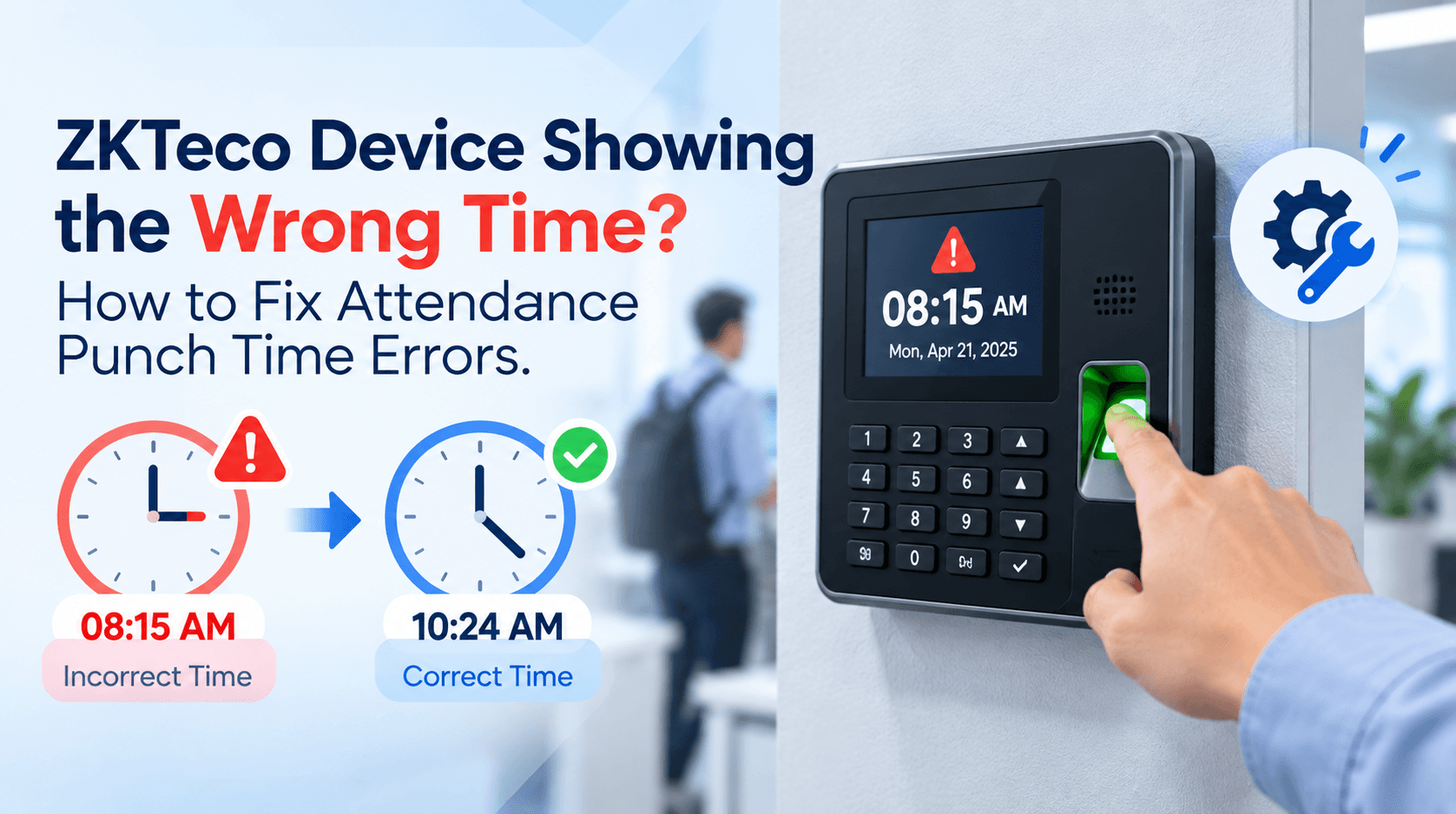
Every punch on a ZKTeco terminal is stamped with the terminal's own clock at the moment the finger or card is read. So when staff arrive on time and the report says they were late, or a night shift appears to finish at lunchtime, the cause is usually a clock somewhere in the chain, not the employee. This guide shows you how to find which clock is wrong, and fix it.
It covers ZKTeco attendance terminals used on their own, and terminals connected to ZKBio Time (BioTime). Menu names come from ZKTeco's manuals for its F18 and 2.4-inch terminals and from ZKTeco's FAQ. Other models use the same ideas with slightly different menus.
Symptoms: what you are seeing
| What you see | What it usually means | Go to |
|---|---|---|
| The terminal's screen shows the wrong time or date | It was set wrongly, or Daylight Saving Time is switched on | Step 1 and Step 2 |
| The screen is right, but BioTime shows punches hours out | A server or database time zone problem | Step 4 |
| The time is right until the terminal connects to the software, then changes | The software is setting the clock from a wrong time zone | Step 3 |
| The time is out by exactly one hour | Daylight Saving Time, or a one-hour time zone difference | Step 2 |
| The time is out by exactly four hours | The database time zone is UTC+8 instead of GMT+4 | Step 4 |
| The time resets after every power cut, or drifts by minutes each week | The terminal's real-time clock may be failing | Step 5 |
| The time was right, then went wrong after a factory reset | A reset does not restore the clock | Step 1 |
What UAE time should be
The UAE is on GMT+4 all year round. It does not change its clocks in summer. That matters because ZKTeco terminals are sold worldwide, and some come with options that are right elsewhere and wrong here:
- Daylight Saving Time must be off. Leave it on and the terminal moves its clock an hour on the dates it has been given.
- The time zone in your software must be GMT+4 (Gulf Standard Time), for the device, the server and, on BioTime 8, the database.
- Check the date as well as the time. A terminal that shows the right time with the wrong date still produces unusable records.
Step 1: Check the time on the terminal itself
Start at the terminal, not the software. Look at the time on the main screen, then open the settings.
- Press M/OK on the main screen and select System, then Date Time. On models that have an administrator, the administrator must verify first.
- Check Set Date and Set Time. Enter the correct values.
- Check 24-Hour Time and Date Format. A date format of DD-MM-YYYY against MM-DD-YYYY will not change the stored time, but it makes the screen easy to misread. Set it to match your reports.
- Compare the terminal with a trusted source, such as your phone, and check again after an hour.
Two points from ZKTeco's manuals catch people out:
- A factory reset does not set the clock. The manual for ZKTeco's 2.4-inch terminals says that after resetting to factory settings, the device's date and time are not restored. If a reset was part of a repair, set the clock again afterwards.
- Do this before you fix anything else. Records stored while the clock was wrong stay wrong. Fix the clock first, so the damage stops growing.
Changing the date or time on a terminal does not correct punches it has already stored. If the clock was out for days, note the dates and times affected before you change it. You will need them to correct the records.
Step 2: Switch off Daylight Saving Time
Some ZKTeco models have a Daylight Saving Time option under System, Date Time. ZKTeco's manual describes it as moving the clock one hour forward on a date you choose and back again on another date. That is useful in countries that change their clocks, and wrong in the UAE.
- Go to Menu, System, Date Time, Daylight Saving Time.
- Check that it is switched off.
- If it was on, switch it off and then set the correct time again.
A terminal that is exactly one hour out, or that went wrong on a particular date and has been wrong since, almost always points here. If your model has no such option, look at the time zone setting in your software instead (Step 4).
Step 3: Find out whether the software is changing the clock
If the terminal is right on its own but wrong once it is connected, the software is correcting the clock to something wrong. ZKTeco's FAQ describes this case: after a device connects to ZKBio Time or ZKBio CVSecurity, the device time changes and becomes incorrect.
ZKTeco's suggested test is simple:
- Disconnect the terminal from the server, by unplugging its network cable or stopping the service.
- Set the correct time on the terminal and watch it for a few minutes.
- Reconnect it. If the time jumps to a wrong value, the time zone of the computer running the software is the cause.
ZKTeco's FAQ says to check that the time zone of the computer is correct. If it is and the problem remains, the FAQ's answer is to contact technical support. Send them the software version, the terminal's model and firmware, and the before and after times.
Step 4: Check the time zone in BioTime, the server and the database
In BioTime there are three places where a time zone can be wrong. Check them in this order.
1. The device's own time zone in BioTime. When you select a time zone in the device's record in BioTime, the terminal's clock is synchronised to that time zone. Open Device, Device, edit the device, and check that it is set to GMT+4 (UAE).
2. The server's time zone. The computer that runs BioTime must also be on GMT+4. ZKTeco's FAQ records that ZKBio Time 8.0 can suddenly fail to open when the server's time zone has changed and no longer matches the software. Its fix is to set the server's time zone back and restart the service. A server left on the wrong time zone after a Windows reinstall or a move of server is a common cause.
3. The database time zone, on BioTime 8. ZKTeco's FAQ says the record table in ZKBio Time 8.0 can show data in UTC+8 instead of your local time zone. UTC+8 is four hours ahead of UAE time. The FAQ's fix is:
1. Open the postgresql.conf file in the BioTime installation directory (pgSQLData folder)
2. Find the line:   timezone = 'Asia/Hong_Kong'
3. Comment it out by adding # at the start of the line
4. Restart the Bio-pgSQL service
Back up the database before you edit its configuration, and do it outside working hours. If you are not comfortable with the file, ask your supplier to do it.
Then check one punch end to end. Make one test punch at a known time, and compare it with the terminal's screen and with the time shown in the BioTime transactions list. If all three agree, the chain is correct.
Step 5: Test the terminal's real-time clock
If the clock is correct after you set it, but is wrong again after a power cut or drifts over a week, the terminal's real-time clock (RTC) may be failing. Many ZKTeco models have a test for it.
- Press M/OK and select Autotest.
- Select Test Clock RTC.
- Press M/OK to start the stopwatch, then press it again to stop, and compare against a watch or phone stopwatch.
ZKTeco's manual describes it as a test of whether the clock "works properly and accurately". A stopwatch that matches does not rule out a battery fault, which only shows when power is removed. If the time resets to a default date after every power cut, treat it as a hardware problem and ask your supplier. A repair or replacement is the fix, not another reset.
If you have recurring power cuts, a terminal with a backup battery keeps its clock and its connection through them. ZKTeco lists a battery option on some models. Ask us which of your terminals support it.
Step 6: Deal with the punches that are already wrong
Once the clock is right, you still have records stamped with the wrong time. The right way to handle them depends on your company, so decide with HR or payroll rather than guessing.
- Note the window. Work out from when to when the clock was wrong, and by how much. A constant offset (exactly one hour, exactly four hours) is easy to describe and easy to correct. A drift is harder.
- Correct in the software, not on the terminal. Do not edit stored times on the device. Use the attendance software's manual-correction or adjustment tools, so the change is recorded and can be audited.
- Keep a note of what you changed and why. Payroll depends on these punches. See WPS-compliant attendance for how the figures feed UAE payroll and overtime.
- Look for missing punches too. A terminal that was offline holds its punches until it can send them. For connection and sync faults, see our guide to BioTime device offline and ADMS errors.
Punch times wrong across several sites, or unsure which clock is at fault? Send us the terminal model, a photo of its Date Time screen, and one punch as it appears in BioTime next to the real time it was made. We will tell you whether it is a settings fault or a hardware fault, and whether it can be fixed remotely. We reply the same day.
How to stop it happening again
- Set GMT+4 and switch off Daylight Saving Time on every terminal when you install it, and write it on the commissioning sheet.
- Standardise the server. Fix its time zone to GMT+4 and keep it on automatic time sync.
- Check the database time zone after every BioTime install or upgrade on version 8.
- Run a test punch after any change: server move, reinstall, reset or firmware update.
- Review the clock monthly on the busiest terminals, by comparing them with a phone. A clock that is a few minutes out is easy to correct, and much harder to correct after months.
- Fit power protection at the door or the network switch, so cuts do not reset or drop terminals.
Need ZKTeco terminals installed and configured correctly the first time? We supply, install and support ZKTeco attendance terminals across the UAE. See the ZKTeco range or ask for a free site survey.
Related guides: ZKTeco BioTime device offline and ADMS sync errors, Hikvision iVMS-4200 employee enrollment, and Suprema BioStar device connection and user sync.