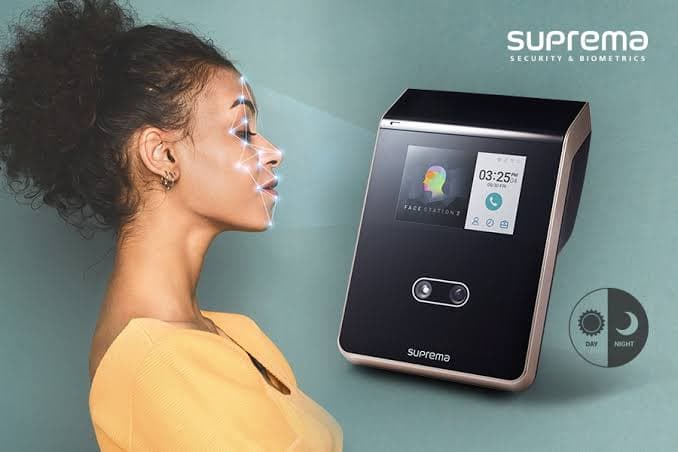
Suprema's BioStar 2 is a server that manages readers and terminals over TCP/IP, and BioStar X is its successor. Most faults come down to one of three things: the connection (direction, ports, certificates), synchronisation (capacity and which users go to which device) or templates (formats and generations that do not match). This guide follows that order.
Its ports and messages are documented in detail by Suprema, so BioStar 2 gets the most space here, and we say where BioStar X differs. The current Suprema range we supply, such as the BioStation 3 Max, is managed by BioStar X.
Symptoms: what you are seeing
| What you see | What it usually means | Go to |
|---|---|---|
| A device shows as disconnected, or is missing from the list | The network path, the connection mode or a blocked port | Step 1 and Step 2 |
| A device disconnects again and again at random | An unstable network, a changing IP address, or a second server holding the device | Step 3 |
| A device will not reconnect after secure communication was changed | The certificate on the device no longer matches the server | Step 4 |
The browser says Not Secure, or you see Enroll failed (no cert) |
The HTTPS certificate does not match the server's address | Step 4 |
Sync Error, or Sync Error (Exceeded max ... count) |
A full device, or a sync that was interrupted | Step 5 |
| Users are missing from a device, or the wrong users are on it | The synchronisation option, or a stale sync | Step 5 |
| Faces or fingerprints stop working after moving to another model or upgrading | Template format or algorithm incompatibility | Step 6 |
| Everything stopped after the server was replaced or its address changed | Certificate, licence or device settings that still point at the old server | Step 7 |
These are the messages Suprema's own documentation uses, so you can match them exactly:
Sync Error
Sync Error (Exceeded max user count)
Sync Error (Exceeded max fingerprint count)
Sync Error (Exceeded max card count)
Sync Error (Exceeded max face count)
Enroll failed (no cert)
Programs built on the Suprema Device SDK, such as an integration or a custom app, report connection problems as BS_SDK_ERROR_TIMEOUT and BS_SDK_ERROR_SOCKET_IS_NOT_CONNECTED when the device cannot be reached, and as BS_SDK_ERROR_CANNOT_LISTEN_SOCKET and BS_SDK_ERROR_CANNOT_CONNECT_SOCKET when the port is already in use.
Step 1: Check the basics: power, cable and IP address
Do the simple checks before anything else:
- Ping the device. No reply means it has no network connection: check power or PoE, the cable and the switch port.
- Read its LED. Suprema's guidance is that a blue or yellow LED on the device means it has not received an IP address, so check your DHCP server.
- Delete and refresh. In BioStar 2, delete the disconnected device from the list and press F5. If it does not come back and the ping works, reset the device's network settings, or restore it to factory defaults as its manual describes.
- Give it a fixed address. In Server to Device mode the server finds the device by its IP address. If a DHCP lease changes it, the server loses the device. Use a static address or a reservation.
Step 2: Match the connection mode to the network and open the ports
BioStar 2 supports two connection directions, and the ports that matter depend on which you use.
| Port | Use |
|---|---|
| 51212 (TCP) | The BioStar 2 server port by default. Change it under Setting → Server. Device to Server connections arrive here. |
| 51211 (TCP) | The device port by default. Server to Device connections go here. |
| 51213 (TCP) | The server port when TLS (secure communication) is used. |
| 51210 (UDP) | Device search. |
| 80 and 443 | The web interface, HTTP and HTTPS by default. |
- Server to Device (the default). The server uses a random port to open a connection to port 51211 on the device. The server must be able to reach the device, and any firewall between them must allow that port.
- Device to Server. The device uses a random port to open a connection to port 51212 on the server. Suprema recommends this mode if devices disconnect often, and it is the right choice for devices on a different network from the server, because otherwise the server will not know when such a device drops.
- BioStar X. Devices connect Device to Server: you enter the BioStar X server's IP address and port in the device's network settings. Use the port numbers in your BioStar X installation guide and open them the same way.
If devices sit behind a firewall or on another VLAN or site, allow the port for your mode. For Device to Server mode, on the server, in an administrator PowerShell:
New-NetFirewallRule -DisplayName "BioStar 2 devices" -Direction Inbound -Protocol TCP -LocalPort 51212,51213 -Action Allow
Two further checks:
- The port must be free. Check nothing else holds it:
netstat -ano | findstr :51212. If another program does, BioStar or an SDK application cannot listen on it, and you getBS_SDK_ERROR_CANNOT_LISTEN_SOCKET. - One server at a time. A device cannot be connected to multiple servers. If it is already held by another BioStar server or an SDK application, it will not accept a second connection. Suprema's guidance is to disable an old BioStar 1.91 running alongside, because devices give it priority.
Step 3: Find out why a device keeps disconnecting
Suprema's own knowledge base says that frequent, random disconnection is most likely an unstable network between the device and the server. Prove or rule that out before anything else. From the BioStar server, run a continuous ping to the device that stamps each line with the time:
ping.exe -t 192.168.1.50 | ForEach-Object { "{0:yyyy-MM-dd HH:mm:ss} {1}" -f (Get-Date), $_ } | Tee-Object -FilePath ping_log.txt
Leave it running across a few disconnections and note the time each one happens, then read the log:
- Timeouts or "host unreachable" lines at the same times as the disconnects: the network is the cause. Look at the switch port, PoE budget, cable, a Wi-Fi link or VPN in between, and any address change.
- A clean log while the device still drops: the network is probably fine. Look at the connection mode (Step 2), a second server holding the device, and the device's firmware, then escalate with evidence.
For a faulty device that survives all of this, Suprema's support asks for: a packet capture of the traffic between server and device, the diagnostic logs, your ping log, the event log for the period, the BioStar system logs, the device model, firmware, serial number and IP address, and a diagram of the network. Collect the same and we can work through it with you.
Step 4: Fix secure communication and HTTPS certificates
Secure communication with the device
With Setting → Server → Secure Communication with Device set to Use, BioStar 2 sends a certificate to each device, and communication runs over TLS. Port 51213 must be open.
Do not turn off secure communication while a device is disconnected from the network. Suprema warns that the BioStar 2 certificate is deleted, and the device cannot then connect to the server again. To recover, the certificate saved on the device must be deleted, or the device restored to factory defaults. Devices without a screen, such as the BioEntry W2 and P2, have a reset button for this.
If a device and the server hold mismatched certificates, the TLS handshake fails and the device stays disconnected. The fix is to give the device the matching certificate, or to restore it to factory defaults so it accepts a new one.
HTTPS "Not Secure" and "Enroll failed (no cert)"
These are browser-side certificate problems on the BioStar 2 server. Suprema's documentation lists three causes: the server has several network interfaces and the certificate was issued to a redundant one, the server had no IP address when BioStar 2 was installed (so it used 127.0.0.1), or the server's IP address changed after installation.
- Quick fix. Close all Chrome processes and relaunch the browser.
- Automated fix (BioStar 2.6 and later). Download and run Suprema's ResetHttpsCertificate tool, choose the correct server IP, click Update HTTPS Certificate, wait a few minutes, then enter the server IP and port in the enrollment window and restart the browser.
- Manual fix. Suprema documents a manual procedure that stops the services, backs up the configuration files, regenerates the certificate for the right interface and edits
ssl_addrinsetting.conf. Follow Suprema's article for that, and back up first.
Suprema devices stuck disconnected, or a rollout that will not sync? Send us the device model and firmware, the BioStar version, the timed ping log and a screenshot of the sync error. We will tell you which layer is failing and whether it is a remote fix. We reply the same day.
Step 5: Fix user synchronisation and capacity errors
Read the message. Before BioStar 2.9.0 the alert said only Sync Error. From 2.9.0 it says which limit was hit: Sync Error (Exceeded max user count), (Exceeded max fingerprint count), (Exceeded max card count) or (Exceeded max face count). The device is full for that credential type.
Know your device's limits. They differ by model, and Suprema documents them on each one. For example, Suprema's FAQ gives the FaceStation 2 a limit of 4,000 users in 1:N face matching, and adding face users beyond it through BioStar 2 fails. Compare your device's capacity in its datasheet with what BioStar is trying to send.
Force a resync, gently first.
- Select the device and run Sync Device.
- If users are still missing, use the device's menu (the three dots) and choose Delete Data & Sync Device. It wipes the device's data and resends everything the server holds for it, so it can take a while on a large site. Do it out of hours.
A sync that was interrupted, for example by a network drop or a server restart, can leave a device looking up to date without every user. The forced resync clears that.
Stop sending everyone to everything. Under Settings → Server → User/Device Management → Automatic User Synchronization, Suprema's Specific Devices (Only devices belonging to the access group) option synchronises a user only to the devices in that user's access groups, and removes users from devices where they do not belong. Device administrators are always transferred. Two cautions from Suprema:
- Face Group Matching does not work with this option, so do not use it if you rely on that feature.
- After switching it on, run Delete Data & Sync Device on each device so users left over from before are cleared.
This is a practical cure for capacity errors on a multi-door site: a terminal at one door holds only the people who use that door.
Step 6: Fix template compatibility when moving users between models
Templates are biometric data extracted by a specific algorithm, so they do not always travel between devices.
Fingerprints
- The Fingerprint Template Format is set under Settings → Server → User/Device Management. The options are Suprema (the default and what Suprema devices are optimised for), ISO and ANSI378. Only ISO 19794-2 Normal is supported, not the compact size or ISO 19794-4.
- Suprema does not allow the format to be changed after registration, and the formats are not compatible with each other. If you need ISO or ANSI 378, for example to share templates with another vendor's devices, change it before anyone enrolls a finger.
Faces
- FaceStation 1 templates do not work on FaceStation 2 because the algorithm and template size differ.
- Visual face algorithms changed. Suprema updated how visual face templates are extracted from photos. Credentials created with BioStar 2 v2.8.6 to v2.8.17 and FaceStation F2 v1.x.x may not work with BioStar 2 v2.9.0 and later, FaceStation F2 v2.x.x or the BioStation 3. Suprema also states that BioStation 3 visual face data is not compatible with FaceStation 2 or FaceLite templates.
- Visual Face Migration helps. In BioStar 2, go to User, open the menu and choose Visual Face Migration. It is a manual step, not run automatically when you upgrade. It reports how many faces migrated and how many failed, writes a CSV of the failures and lets you delete failed faces so you can re-enroll them.
A safe way to change models
- Test five people on the new model before moving a site.
- Keep the source photos and settle on one template format per site.
- Migrate in batches, not all at once, and keep the old devices until the new ones are proven.
Step 7: If you moved or upgraded the server
- The licence follows the server. Suprema states that BioStar 2 server licences are issued against the MAC address of the server PC, so moving the server invalidates them. Contact Suprema with your old licence files before the move.
- The HTTPS certificate. A changed address triggers the Step 4 problems, so plan to regenerate it.
- Devices still pointing at the old address. In Device to Server mode each device holds the server's address. Update the devices, or in BioStar X use a domain name: Suprema documents that devices configured with a domain name reconnect automatically when the server's IP changes (firmware 1.0.0 and later).
- BioStar X scale. One BioStar X server or communication server connects up to 1,000 devices, and the Device Connection Manager adds more communication servers for up to 3,000.
- Upgrading BioStar 2 to BioStar X. You need BioStar 2 v2.9.11 or higher, and versions below v2.6.4 must be upgraded in stages first. Devices such as the XPass S2, XPass, BioEntry W, BioEntry Plus and BioLite Net block the upgrade. The licensing differs, and the T&A service needs its own BioStar X T&A licence. Keep the database administrator or root password safe, because losing it prevents upgrades and backups.
What to collect before you call anyone
- The exact sync or connection message, or a screenshot.
- The BioStar version (2 or X) and the device models and firmware.
- Whether devices run in Server to Device or Device to Server mode, and whether secure communication is on.
- The timed ping log covering one or more disconnections.
- What changed: a new server or address, an upgrade, a certificate change, a firewall change or a batch of new users.
Planning or repairing a Suprema deployment in the UAE? We supply, configure and support Suprema devices and BioStar across all seven emirates. Send us the items above and we will reply the same day. Building something new? Ask for a free site survey, or see the Suprema range.
Related guides: Hikvision iVMS-4200 employee enrollment, ZKTeco BioTime device offline, and access control door not unlocking. For how Suprema compares with the other two brands, see our enterprise access control comparison.